Shopify themes don’t include a dark mode switch for shoppers. You can still give your store a dark look, and there are three ways to do it. Each one fits a different situation:
| Method | Shoppers can switch? | Code needed | Best for |
|---|---|---|---|
| 1. Dark color scheme in theme settings | No, the store is always dark | No | Brands that want a permanently dark store |
| 2. Custom-coded dark mode toggle | Yes | Yes (Liquid, CSS, JavaScript) | Developers comfortable maintaining theme code |
| 3. A dark mode app | Yes | No | Merchants who want a toggle without editing code |
This guide walks through all three so you can pick the right one.
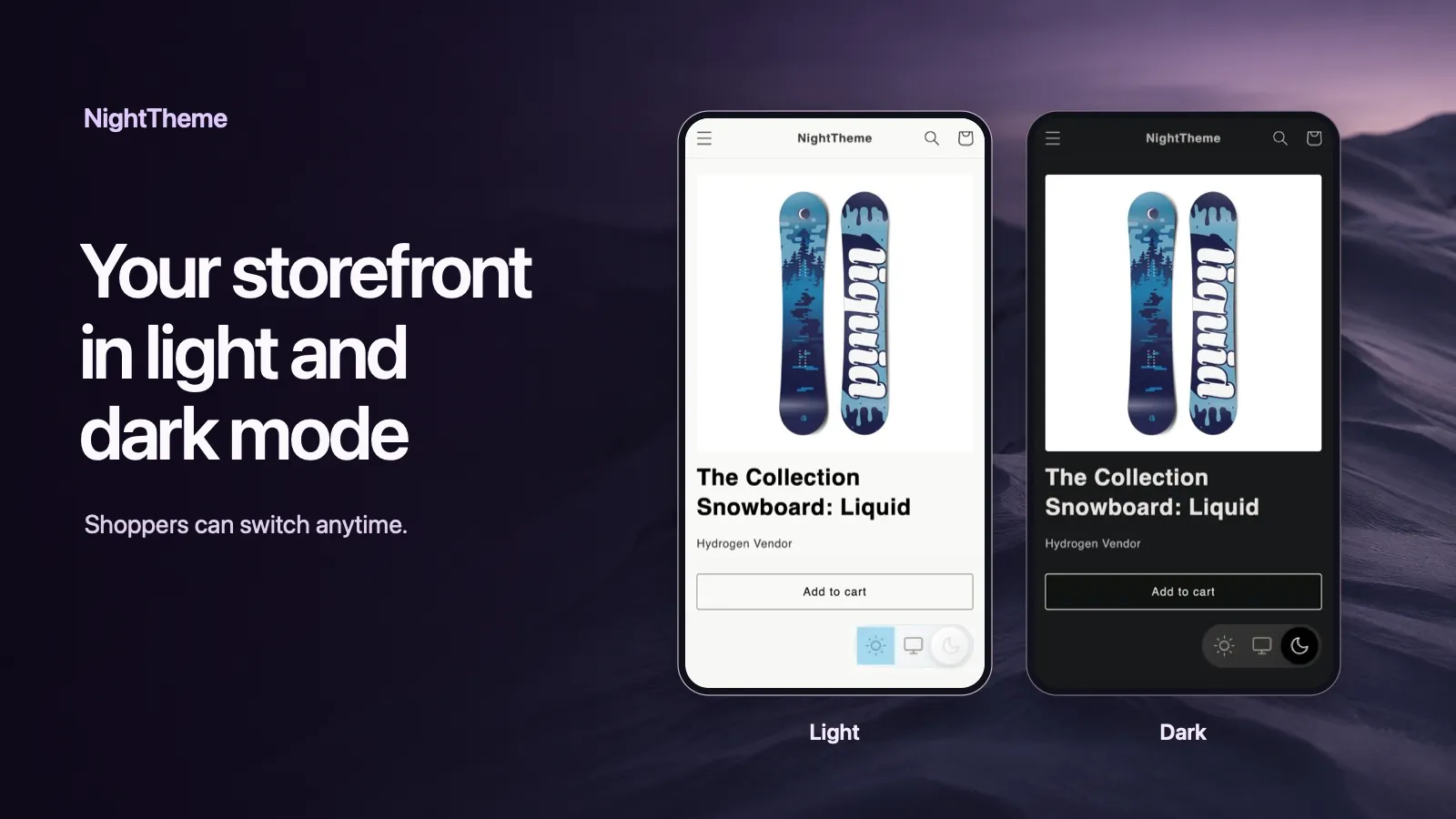
Light store, dark store, or a switch?
First decide what you actually want:
- A permanently dark store. Every visitor sees a dark design. This is a branding decision, common for gaming, nightlife, streetwear, and premium tech stores.
- A light store with a dark mode option. Your store keeps its normal design, and shoppers who prefer dark screens can switch, or have it follow their device setting automatically.
A permanently dark store only needs your theme settings (Method 1). A store with a switch needs code (Method 2) or an app (Method 3).
Method 1: Use a dark color scheme in your theme settings
Most current Shopify themes, including Dawn and the other free Shopify themes, use color schemes. A color scheme is a saved set of colors (background, text, buttons) that you assign to sections of your store.
To make your store dark:
- In your Shopify admin, go to Online Store > Themes and click Customize on your theme.
- Open Theme settings (the gear icon) and choose Colors.
- Edit the color scheme used by most of your sections, usually the first one. Set Background to a dark color such as
#121212and Text to a light color such as#EDEDED. - Adjust Solid button background and Solid button label so buttons stay readable.
- Check your header, footer, and any sections that use a different scheme, and switch them to your dark scheme.
- Click Save.
Pros: free, no code, and no impact on page speed.
Cons: everyone sees the dark design, with no way to switch back. You’ll also need to check your logo and any images with white backgrounds. See how to fix a logo that disappears in dark mode.
Tip: avoid pure black (
#000000) backgrounds with pure white text. A very dark gray with slightly off-white text is easier to read for long periods.
Method 2: Code your own dark mode toggle
If you want shoppers to choose between light and dark, you can build a toggle yourself. A good implementation needs four parts:
- Dark color rules. CSS that overrides your theme’s colors when dark mode is on. In Dawn-based themes this means overriding CSS variables such as
--color-backgroundand--color-foreground. - A toggle button that switches between light and dark.
- Remembering the choice, usually in
localStorage, so the setting carries across pages and visits. - No flash of light content. A small script in the
<head>applies dark mode before the page renders, so dark mode users don’t see a white flash on every page load.
We published a full, copy-paste implementation in How to add a dark mode toggle button to Shopify, and a Dawn-specific version in How to add dark mode to the Shopify Dawn theme.
Pros: free and fully under your control.
Cons: you edit theme code, and you have to maintain it. Theme updates can overwrite your changes. Every section, app block, and third-party widget with its own colors needs its own dark rules, and on a large theme that list gets long.
Method 3: Use a dark mode app
A dark mode app adds the toggle and the dark styling without theme code changes. NightTheme works like this:
- Install the app from the Shopify App Store.
- Turn on the Dark Mode Switcher app embed in your theme editor and save.
- Choose where the switch appears on desktop and mobile, and pick a default: Light, Dark, or Auto (follows the shopper’s device setting).
- Preview dark mode on your own storefront before turning it on for shoppers.
- Fine-tune anything that needs it with dark-mode-only custom CSS, or invert your logo so it stays visible.
Because an app embed doesn’t modify your theme files, theme updates won’t remove it, and switching it off restores your store exactly as it was.
Pros: no code, works on most themes, and shoppers get a real switch. Auto mode respects their system preference.
Cons: it’s a paid app (with a free trial), and stores with very custom designs may still need a few CSS adjustments.
Dark mode checklist before you go live
Whichever method you choose, check these before turning dark mode on:
- Logo. Dark logos disappear on dark backgrounds. Use an inverted or light version. See the fixes.
- Product images. Photos with white backgrounds will look like bright boxes. This is usually acceptable, and you should avoid inverting product photos. If you want them to blend in, consider transparent or light-gray backgrounds.
- Buttons and badges. Make sure “Add to cart”, sale badges, and sold-out labels still have enough contrast.
- Forms and inputs. Check the search box, newsletter signup, and quantity selectors.
- Third-party widgets. Reviews, chat bubbles, and popups often have hard-coded colors.
- Mobile. Test on a phone. Most shoppers browse on mobile, and that’s where the device dark mode setting is most often turned on.
- Checkout. Shopify checkout is styled separately from your theme, so theme-based dark mode (coded or app) does not change checkout pages. Make sure the jump from a dark store to a light checkout feels intentional.
Which method should you choose?
- Want a dark brand and no switch? Use Method 1. It’s free and takes about ten minutes.
- Are you a developer with a simple theme? Method 2 gives you full control.
- Want a switch without code, or don’t want to maintain custom CSS across theme updates? Use Method 3.
You can also combine them: use a dark color scheme for a few sections, such as a dark hero banner, and still offer a full-store switch with an app.
More Shopify dark mode guides
- How to Add Dark Mode to the Shopify Dawn Theme Three ways to add dark mode to Dawn: switch to a dark color scheme, add a light/dark toggle with Dawn's CSS variables, or use an app. Step-by-step with code.
- How to Add a Dark Mode Toggle Button to Shopify Add a Light / Dark / Auto toggle to any Shopify theme: remember the shopper's choice, follow their device setting, and avoid the white flash on page load. Code included.
- Logo Disappears in Dark Mode on Shopify? 4 Ways to Fix It A dark logo vanishes on a dark background. Four ways to keep your Shopify logo visible in dark mode: invert it with CSS, swap in a light version, add a backdrop, or use an app setting.