You turn on dark mode and your logo is gone. Your logo is probably a dark image on a transparent background, which is invisible on a dark page. The same thing happens to dark icons, payment badges, and “as seen in” press logos.
Here are four ways to fix it, from quickest to most polished. All CSS examples assume dark mode is marked with data-theme="dark" on the <html> element, as in our dark mode toggle guide. If your setup uses a different class or attribute, change the selector to match.

First, find your logo’s selector
To target the logo with CSS you need its class name:
- Open your store in Chrome, Edge, or Firefox.
- Right-click the logo and choose Inspect.
- Look at the highlighted
<img>(or<svg>) element and note its class.
In Dawn and many themes based on it, the header logo is .header__heading-logo. Other themes use names like .site-header__logo-image or .logo img.
Fix 1: Invert the logo with CSS
The fastest fix is to flip the logo’s colors in dark mode only:
html[data-theme='dark'] .header__heading-logo {
  filter: invert(1) hue-rotate(180deg);
}
invert(1) turns black into white. hue-rotate(180deg) turns the colors back toward their original hue, so a blue logo stays roughly blue instead of turning orange.
Works well for: black or very dark single-color logos.
Watch out for: multi-color logos. Inverting changes their brightness, so brand colors won’t be exact. If your logo has a white background baked in, that background turns black, which usually looks fine on a dark page.
Add the CSS through your dark mode setup. That might be your theme’s custom CSS, the snippet from our toggle guide, or your dark mode app’s custom CSS field.
Fix 2: Swap in a light version of your logo
For the most accurate result, use a separate light version of your logo, designed for dark backgrounds. Many brand kits already include one.
- Upload the light logo in Content > Files in your Shopify admin and copy its URL.
- Hide the normal logo in dark mode and show the light one as a background image:
html[data-theme='dark'] .header__heading-logo {
  opacity: 0;
}

html[data-theme='dark'] .header__heading-logo-wrapper {
  background: url('YOUR-LIGHT-LOGO-URL') center / contain no-repeat;
}
The original image keeps its space in the layout, so nothing shifts. Replace .header__heading-logo-wrapper with the element that wraps the logo in your theme.
Works well for: multi-color logos and brands with strict color guidelines.
Watch out for: the light logo should have the same proportions as the original so it fills the same space.
Fix 3: Put the logo on a light backdrop
If you don’t want to change the logo at all, give it a small light background in dark mode:
html[data-theme='dark'] .header__heading-logo {
  background: #ffffff;
  padding: 6px 10px;
  border-radius: 8px;
}
This keeps the logo exactly as designed. The result looks like a badge or sticker, which suits some brands better than others.
Works well for: detailed logos, logos with gradients, and partner or press logos that you shouldn’t recolor.
Fix 4: Use your dark mode app’s invert setting
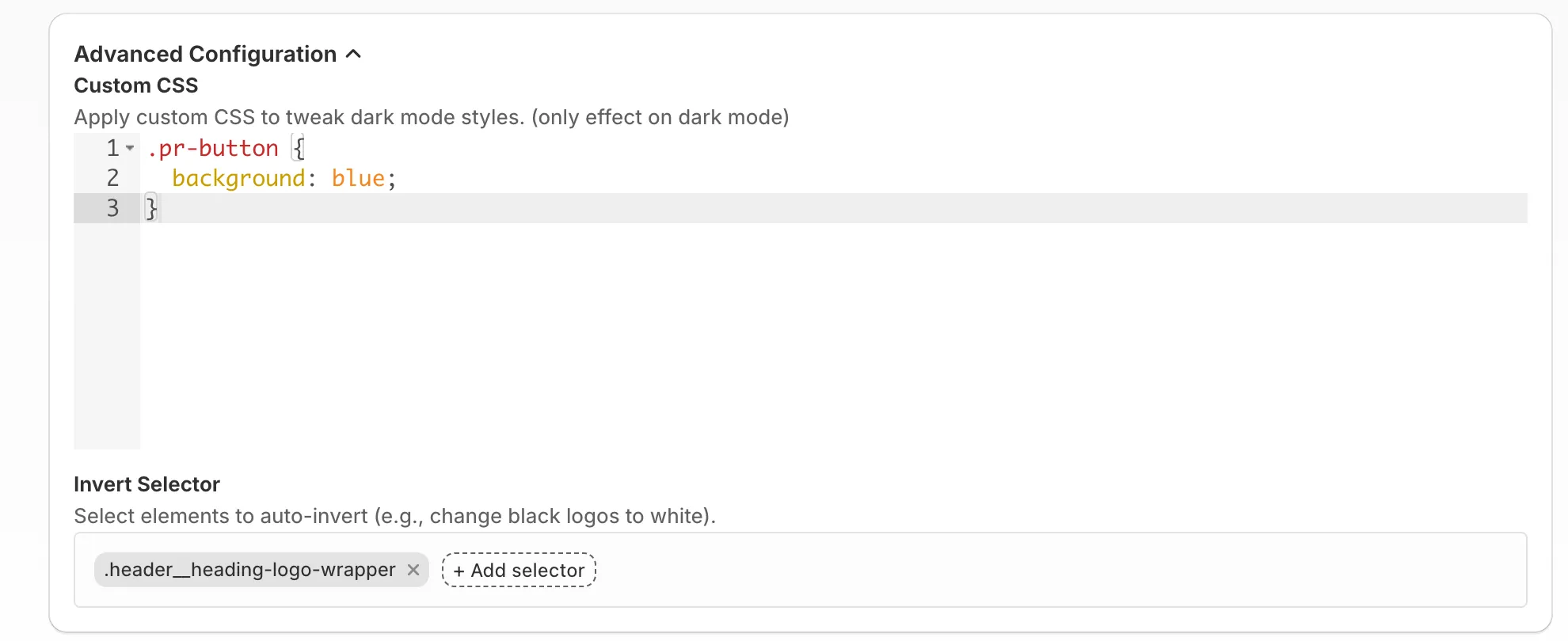
If you use a dark mode app, check whether it has a setting for this. In NightTheme, open Advanced Configuration and add your logo’s selector (for example .header__heading-logo) to the Invert selector field. The logo is inverted only when dark mode is on, the same as Fix 1, but without editing code. For other adjustments, use the Custom CSS field in the same section. Its rules only apply in dark mode, so you don’t need a dark mode selector.
What about product images?
Don’t invert product photos. Shoppers need to see true colors before they buy. Photos with white backgrounds will look like bright cards on a dark page. Most shoppers accept that, and many large stores do the same. If it bothers you:
- Use product photos with transparent or light-gray backgrounds where possible.
- Slightly dim images in dark mode so they’re less glaring. Keep it subtle:
html[data-theme='dark'] img {
  filter: brightness(0.92);
}
Exclude your logo from this rule if you’ve already inverted it.
Other things that often disappear in dark mode
Once your logo is fixed, check these too:
- Icons in the header (search, account, cart) if they’re images rather than SVGs that use the text color
- Payment icons and trust badges in the footer
- Press and partner logos (“As seen in”)
- Dark text inside images, like banners with the text baked in
- Size charts and infographics with transparent backgrounds
The same four fixes apply: invert simple single-color graphics, swap or add a backdrop to anything with brand colors, and leave photos alone.
For a full checklist before launching dark mode, see Shopify dark mode: 3 ways to add it to your store.
More Shopify dark mode guides
- Shopify Dark Mode: 3 Ways to Add It to Your Store Compare the three ways to add dark mode to a Shopify store: a dark color scheme, a custom-coded toggle, or an app. Includes setup steps and a checklist.
- How to Add Dark Mode to the Shopify Dawn Theme Three ways to add dark mode to Dawn: switch to a dark color scheme, add a light/dark toggle with Dawn's CSS variables, or use an app. Step-by-step with code.
- How to Add a Dark Mode Toggle Button to Shopify Add a Light / Dark / Auto toggle to any Shopify theme: remember the shopper's choice, follow their device setting, and avoid the white flash on page load. Code included.